Now that you have your goals entered, you’ve given yourself a base rating and you’ve selected your raters, you can begin to use your dashboard to manage your LUMEN experience.
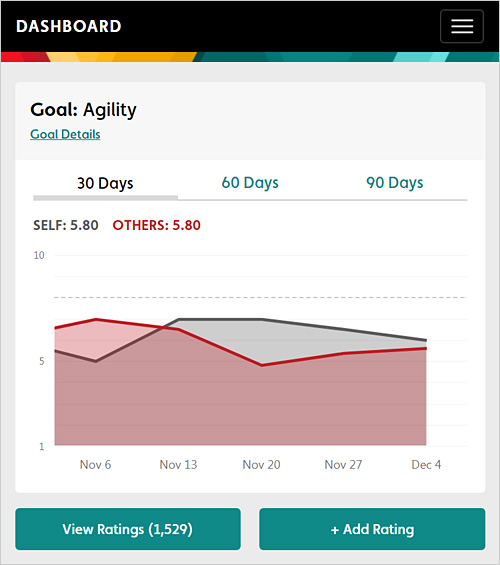
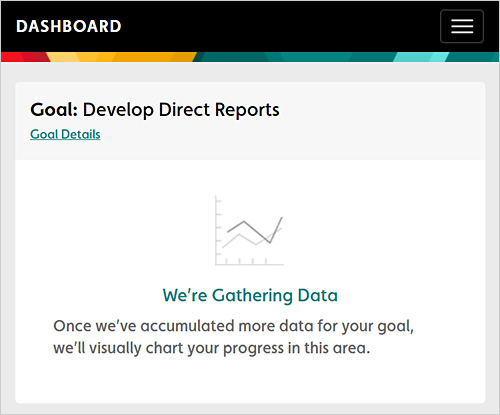
Think of your dashboard as a health app for your learning and development. The data you see displayed is segmented by 30, 45 and 90 days. Your personal assessment is the gray area; the aggregate average of your raters is represented by the pink area. This allows you to see at a glance how you have rated yourself compared with how your raters have rated you. Please note: You will see the following on your screen until enough data is captured to show an aggregate average: “We’re Gathering Data. Once we’ve accumulated more data for your goal, we’ll visually chart your progress in this area.”
Add rating
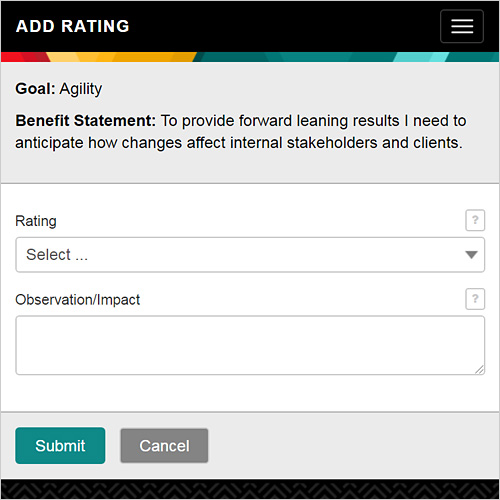
The add rating button allows you to go into your goal and add an updated rating and observation/impact for each goal. We recommend you rate yourself weekly to build the habit of reflecting. You can set an alert to remind yourself and establish a cadence. Keep in mind that you can rate yourself more frequently based on key break-through experiences, and yes, even setback. If you enter a “notable rating” – ie., a rating at the low end of the scale or the high end of the scale – you will be prompted to enter a comment. You can also enter a comment for a rating in the middle of the scale, but it is not required.
View your ratings
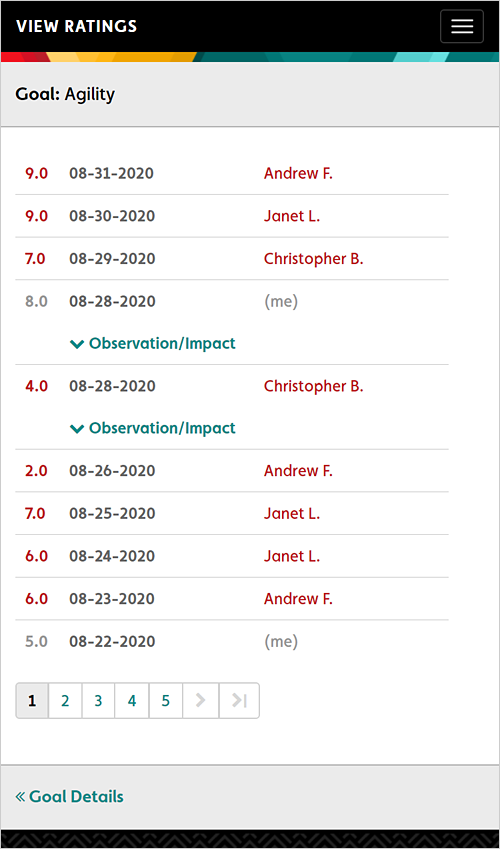
From your dashboard you are also able to view your ratings. Click on the “view ratings” button. The screen you see will show the rating you received from a rater, the date, and if supplied, the observation the rater provided.

View ratings
By clicking on the view ratings button, you will be able to see your benefit statement, key actions and contact information for your raters.
Edit your goal
In this section you can also edit/update your goal. “Sunsetted” goals will remain visible but grayed out so that they are still a part of your discussion with your coach or manager about your progress.
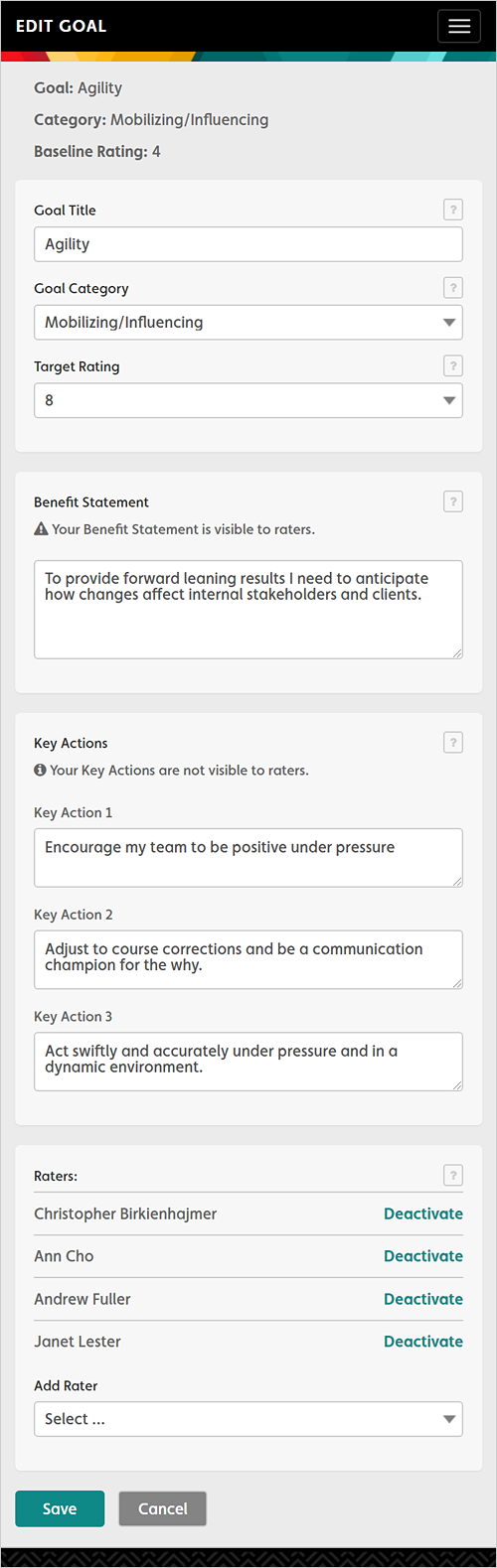
Your goal title should be specific to your company in language that resonates with your company’s vernacular.
The goal category is an industry term that allows us to aggregate data for analytics. Therefor you will see a drop-down menu that allows you to select the category where you goal resides.
Here you can also add or deactivate raters, which is sometimes necessary as circumstances change and people move into new roles or exit the company. To add raters, you will need to go to your goal details section from your dashboard; then select edit goal on lower left-hand side by raters. Once in edit goal, you can scroll through rater options listed at the bottom of the page, add rater.
Finally, under the view ratings tab, you are able to change your goal alert preferences – how often you’d like to receive a reminder to submit a rating, whether you’d like to be notified when there is a rating differential of three points or more between you and a rater, and whether you’d like to be notified when a rater enters in an observation. (The bottom three items in this section – rater inactivity, progress and engagement badge – are under construction and will become available in 2020.)
Comments
0 comments
Please sign in to leave a comment.